Automations
Set up TikTok workflow automation in fypnow: connect a trigger to the steps fypnow should take, test it with Run now, and turn it on. On every paid plan.
Open Automations in the sidebar. Each automation starts with one trigger and runs the steps connected below it, top to bottom: a trigger plus up to 29 steps. Automations are included on every paid plan.
Create one
- Press New automation and pick a template, or Start from scratch.
- Add steps from the list on the left: drag one onto the canvas, or click it to add it below the selected step.
- Click a step to edit its settings. Use Insert variable to use what earlier steps produced, for example
{{trigger.video_url}}or{{n2.hook_type}}. - Press Save, then Run now to test it once. Turn the switch on when it looks right.
Templates
- Breakout from a tracked creator → analyze → script → Slack
- Tracked creator posted → analyze → Library → Discord
- Every Monday 9:00 → growth scorecard → email me
- Every Monday 9:00 → niche playbook → Slack
- Breakout (10x or more) → carousel script → Studio → TikTok drafts
- Daily 8:00 → 3 Studio slideshows → TikTok drafts
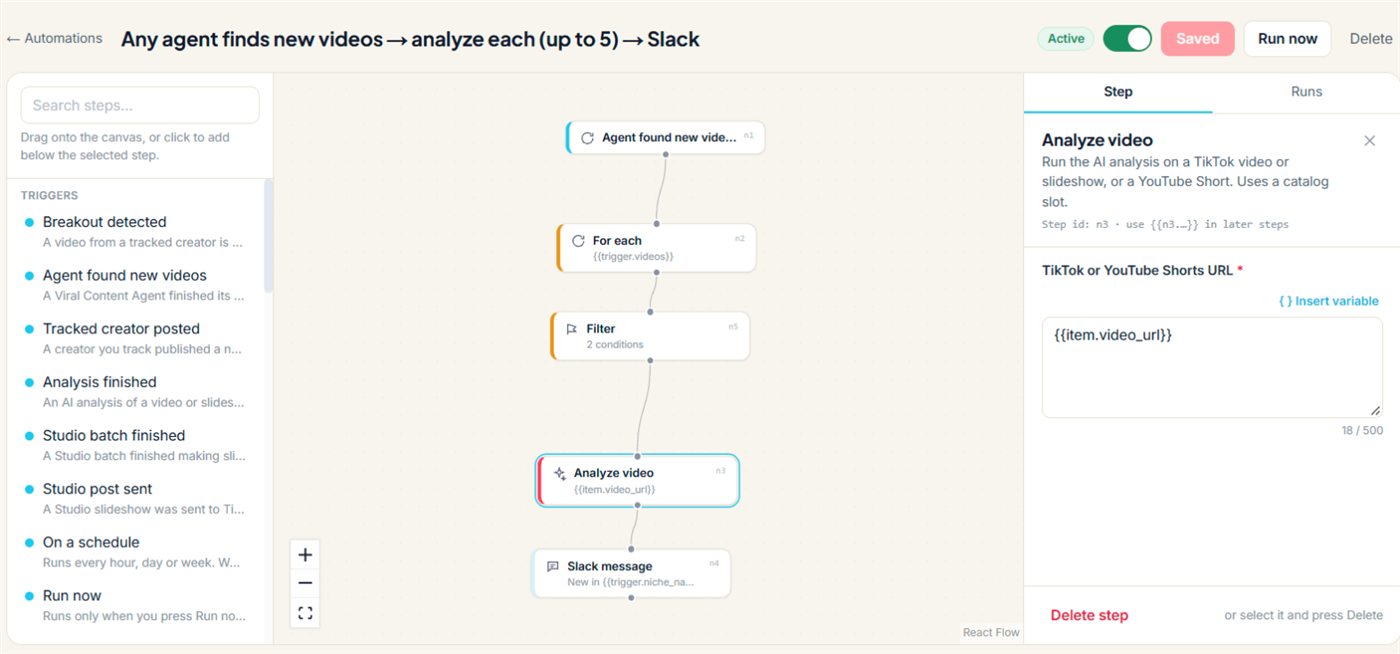
- Any agent finds new videos → analyze each (up to 5) → Slack
A template opens as a normal automation: pick the Slack channel, niche or TikTok account it asks for, then save it.
Triggers
Every automation has exactly one trigger. Triggers need no integration, and each one hands its data to the steps below it.
- Breakout detected: A video from a creator you track gets far more views than that creator usually does. Narrow it to certain creators or formats with a Filter step. Setting: minimum multiplier, 5x, 10x or 20x. Carries: link, views, typical views, multiplier, creator, format (video, photo carousel or slideshow).
- Agent found new videos: One of your Viral Content Agents finished a refresh and found new videos in its niche, TikTok or YouTube Shorts. Setting: only these niches. Carries: the top 5 new videos by virality, each with views, multiplier, platform, creator and link, plus the niche name and how many videos are new.
- Tracked creator posted: A creator you track has a new video up. Setting: only these creators. Carries: caption, link, views, likes, format, posting time.
- Analysis finished: An AI analysis finished on a TikTok video, a TikTok slideshow or a YouTube Short, whether you started it or another automation did. Setting: platform, TikTok or YouTube Shorts. Carries: hook type, content type, niche, highlights, link.
- Studio batch finished: A Slideshow Studio batch finished making slideshows. Setting: only completed, partly completed or failed batches. Carries: the slideshow IDs, how many were made, how many failed.
- Studio post sent: A Studio slideshow reached the TikTok drafts of an account you connected, or failed to. Setting: only certain results. Carries: slideshow, TikTok account, result.
- On a schedule: Every hour, every day at a set time, or on the days of the week you choose. Settings: minute, hour, days, time zone.
- Run now: Runs only when you press Run now, with an optional default topic. Handy for one-off batches. Setting: default topic.
Triggers need no integration. Only the Slack, Discord and webhook steps do.
Filters and logic
Virality in FYPNow is the multiplier: a video’s views divided by the creator’s typical views. A video at 240,000 views from a creator whose videos typically get 20,000 is at 12x, so it clears a 10x breakout trigger and misses a 20x one.
- Filter: Continue only when the conditions match. Use up to 10 conditions on any field from the trigger or an earlier step, and match all of them or any of them. Examples:
Views is at least 100,000,Multiplier is at least 5,Platform is YouTube Shorts,Format is Photo carousel,Username is one of @rival, @otherrival. Operators: is, is not, is more than, is at least, is less than, is at most, contains, doesn’t contain, is one of, has a value. - Branch: Send each run down a Yes path or a No path, using the same conditions as Filter. Example:
Hook type is Curiosity gapgoes to Slack, everything else to your Library. - For each: Run the next steps once per item in a list, up to 25 items, such as each new video an Agent found. One For each per automation, no loops inside loops. Each item’s fields are variables:
{{item.username}},{{item.multiplier}},{{item.video_url}}. - Wait: Pause between 1 minute and 24 hours before the next step, for example to post the Slack recap after the morning rush.
Steps
- Logic: Filter, Branch (Yes / No), For each (up to 25 items) and Wait (up to 24 hours).
- Data: Search analyzed videos, Find similar videos, Niche videos, Niche stats, Recent breakouts, Creator report, Growth scorecard, Get video analysis and Generate report.
- Generate report builds a niche playbook (the top videos in a niche by views ÷ followers, views, likes or engagement, what they have in common, hooks from videos you have analysed, and takeaways), niche trends, weekly performance, a creator report, a competitor benchmark or a client summary. Later steps get its title, a one-line summary, the key stats and three links: the report, its CSV and, for the niche playbook and creator report, its PDF. The links open for members of your workspace for as long as the run is kept (30 days). For example: “Every Monday 9:00 → niche playbook → Slack”.
- Actions: Analyze video, Generate script (video or carousel), Search viral trends, Save to Library and Track creator.
- Studio: Make Studio slideshows, Slideshow from script and Send to TikTok drafts (up to 5 slideshows per step). Slideshows go to the drafts of a TikTok account you connected; nothing is published, and you post them yourself in the TikTok app.
- Notify: Slack message, Discord message and Webhook (connect them in Settings → Integrations), and Email to you or members of your workspace.
What each step does
The same research and actions as the dashboard. Steps that analyze, write or make something use the same plan allowances as doing it by hand.
- Find videos and data: Read your workspace’s research without opening a tab. Search analyzed videos: by creator, views, date or format. Find similar videos: up to 25 videos like one you pick. Niche videos: an Agent’s top videos, ranked by multiplier. Niche stats: typical views, breakouts, top posts, hashtags, sounds and creators. Recent breakouts, Creator report, Growth scorecard, Get video analysis. Generate report: a niche playbook, niche trends, weekly performance, creator, competitor or client report, with a summary and links to the report, its CSV and (niche playbook and creator report) its PDF for the next step to send.
- Analyze video: The full AI breakdown of a TikTok video, a TikTok slideshow or a YouTube Shorts link: hook type, hook text, content type and niche. Uses a catalog slot.
- Generate script: A video or carousel script for your own account, based on any analyzed video, with optional notes. Uses a script credit.
- Search viral trends: Breakout videos for a hashtag over the last 7, 14 or 30 days. Uses a trend search.
- Save to Library and Track creator: File a video in your workspace Library, or start tracking a TikTok creator (outside a For each).
- Slideshow Studio: Make Studio slideshows (up to 10 per batch, from a topic, your niche or a creator’s format, built from your own photos), Slideshow from script (turns a carousel script into a slideshow) and Send to TikTok drafts (up to 5 a day, to an account you connected). Nothing is published: you review the drafts and post them yourself in the TikTok app.
Destinations
Messages are your own text plus variables from the trigger and earlier steps. Click Insert variable to drop in {{trigger.multiplier}}, {{item.username}} or {{n3.hook_type}} (the hook type from step 3).
- Slack message: Post to a Slack channel you connected once in Settings → Integrations.
- Discord message: Post to a Discord channel, connected the same way.
- Webhook: A signed JSON POST to your own URL, so any tool that accepts a webhook can take it from there: n8n, Make or your own server. Run any step’s output through whatever you like, including AI image generation, or add a row to Notion or Google Sheets. One-way: FYPNow sends the message and doesn’t read the reply. Slideshow Studio, by contrast, builds slideshows from your own photos and sends them to your TikTok drafts.
- Email: Email you or up to 20 members of your workspace, with your own subject and message. Outside addresses aren’t allowed.
Runs and limits
Each workspace can have Creator 1 automation turned on with 500 runs a month, Starter 5 automations with 2,000 runs, Pro 25 automations with 10,000 runs and Business 100 automations with 50,000 runs. Runs reset on your billing day. A run counts once it starts a real step; runs stopped by a trigger filter or a Filter step don’t count. Steps use the same plan allowances as doing them by hand: an Analyze video step uses a catalog slot, a Generate script step a script credit.
Open the Runs tab on an automation to see runs from the last 30 days, with each step’s input, output and error.
When an automation pauses
- Paused – limit reached: a step hit a plan allowance. It resumes by itself when there’s room again: the monthly allowance resets, you make room (for example by dropping a video) or you upgrade.
- Paused – errors: five failed runs in a row. Open the failed run, fix the step and press Resume.
- Paused – owner left: the person who made it left the workspace. An owner or admin can Take over.
Editing works on a tablet or computer. On a phone you can turn automations on or off and check their runs.