Features · Creators, brands and agencies who repeat the same research steps every day
Automations: TikTok workflow automation that acts on breakouts, new posts and schedules
Automations is a no-code TikTok workflow builder inside FYPNow. Pick a trigger (a creator you track breaks out, your Viral Content Agent finds new videos, a schedule), then connect the steps: analyze the video, write a script, make Slideshow Studio slideshows, send them to your TikTok drafts, and tell Slack, Discord, a webhook or your inbox.
Used by 300+ creators, brands and agencies
- 1,000,000+ TikToks and Shorts tracked
- 100,000+ creators in our library
- 50,000+ hooks broken down
What this replaces
- You check breakouts every morning, then paste the same link into analysis, then into a script, then into Slack.
- A video from a creator you track breaks out at 2am, and nobody looks at it until lunch.
- Your team wants the same numbers every Monday, and someone has to remember to send them.
- Making slideshows from what is working means the same handful of clicks for every topic.
How it works
- Open Automations and start from one of seven templates or a blank canvas.
- Pick a trigger: a breakout from a creator you track, new videos from an Agent, a tracked creator posting, an analysis finishing, a schedule or Run now.
- Add steps from the list and connect them. Each step can use what earlier steps produced, like the video link or the hook type.
- Press Run now to test it once, check each step’s result, then turn it on.
- Every run is listed with what each step did. If a plan limit is hit, the automation pauses and resumes by itself.
TikTok workflow automation ideas you can build today
Each idea is a real chain from the builder, start to finish. Open a blank canvas, add the steps in this order and pick your own channel, niche or account.
Brands and creators watching competitors
Only the breakouts that reached a real audience
- Breakout detected · 5x or more
- Filter · views is at least 100,000
- Slack message · #competitors
A 5x on an account that usually gets 2,000 views is noise. Adding a 100,000-view floor means Slack only pings for videos a real audience saw.
Content teams building a hook swipe file
Sort competitor posts by hook type
- Tracked creator posted · the competitors you pick
- Analyze video
- Branch · hook type is Curiosity gap
- YesSlack message · with the hook text
- NoSave to Library
The hooks you want to study reach Slack minutes after posting, and every other post still lands in your Library for later.
Agencies running research for several clients
One Slack channel per client
- Agent found new videos · only the client’s Agent
- For each · each new video, up to 5
- Filter · multiplier is at least 5
- Slack message · #client-acme
Copy it once per client. Each client channel gets only its own niche’s 5x+ videos, and nobody pastes links between workspaces.
Creators posting on both TikTok and Shorts
TikTok and YouTube Shorts, split by platform
- Agent found new videos
- For each · each new video, up to 5
- Branch · platform is YouTube Shorts
- YesSlack message · #shorts
- NoSlack message · #tiktok
One Agent watches both platforms. Shorts go to the channel your YouTube editor reads, TikToks to yours.
Creators and brands scouting new accounts
Start tracking whoever just broke out in your niche
- Agent found new videos
- Filter · top new video: platform is TikTok, multiplier is at least 20
- Track creator · that video’s creator
- Slack message
A 20x TikTok from an account you don’t track yet is worth watching. Once tracked, their next breakouts and posts can start your other automations.
Social teams with a weekly check-in
Monday scorecard for the whole team
- On a schedule · Mondays 9:00, your time zone
- Growth scorecard · last 30 days
- Email · you and your teammates
Everyone walks into the Monday meeting with the same four numbers, and nobody has to remember to send them.
Teams that keep research in a spreadsheet
Every analysis logged to Notion or Google Sheets
- Analysis finished · TikTok or YouTube Shorts
- Webhook · your n8n or Make workflow
Point the webhook at an n8n or Make workflow that adds a row. Your swipe file fills itself every time anyone on the team analyzes a video.
Creators who make carousels with AI images
Breakout to a carousel script for your AI image generator
- Breakout detected · 10x or more
- Analyze video
- Generate script · carousel, for your account
- Webhook · n8n, Make or your own server
FYPNow writes the slide-by-slide script; the webhook hands it to n8n, Make or your own server, which can call your AI image generator and save the images wherever you like.
Seven templates, one click to start
A template opens as a normal automation you can edit. Pick the Slack channel, niche or TikTok account it asks for, then save it.
Brands and creators
Breakout from a tracked creator → analyze → script → Slack
- Breakout detected · 10x or more
- Analyze video
- Generate script · video, for your account
- Slack message
A competitor’s breakout reaches Slack already analyzed, with a script for your account waiting in FYPNow.
Creator teams and communities on Discord
Tracked creator posted → analyze → Library → Discord
- Tracked creator posted
- Analyze video
- Save to Library
- Discord message · with the hook type
Every new post from the creators you track is broken down and filed, without anyone pasting a link.
Solo creators
Every Monday 9:00 → growth scorecard → email me
- On a schedule · Mondays 9:00
- Growth scorecard · last 30 days
- Email · you
Your own numbers against your niche’s benchmarks, in your inbox before the week starts.
Social media teams and agencies
Every Monday 9:00 → niche playbook → Slack
- On a schedule · Mondays 9:00
- Generate report · niche playbook, top 10 by views ÷ followers
- Slack message · with the PDF and CSV links
What went viral in a niche last week and what the winning videos have in common, in your team’s channel before the Monday meeting.
Slideshow creators
Breakout (10x or more) → carousel script → Studio → TikTok drafts
- Breakout detected · 10x or more
- Generate script · carousel
- Slideshow from script
- Send to TikTok drafts
A topic that just proved itself becomes a slideshow in your TikTok drafts. You review it and publish it yourself in the TikTok app.
Creators who post slideshows every day
Daily 8:00 → 3 Studio slideshows → TikTok drafts
- On a schedule · daily 8:00
- Make Studio slideshows · 3, topic from your niche
- Send to TikTok drafts
Three slideshows built from your own photos are waiting in your drafts every morning.
Agencies and research teams
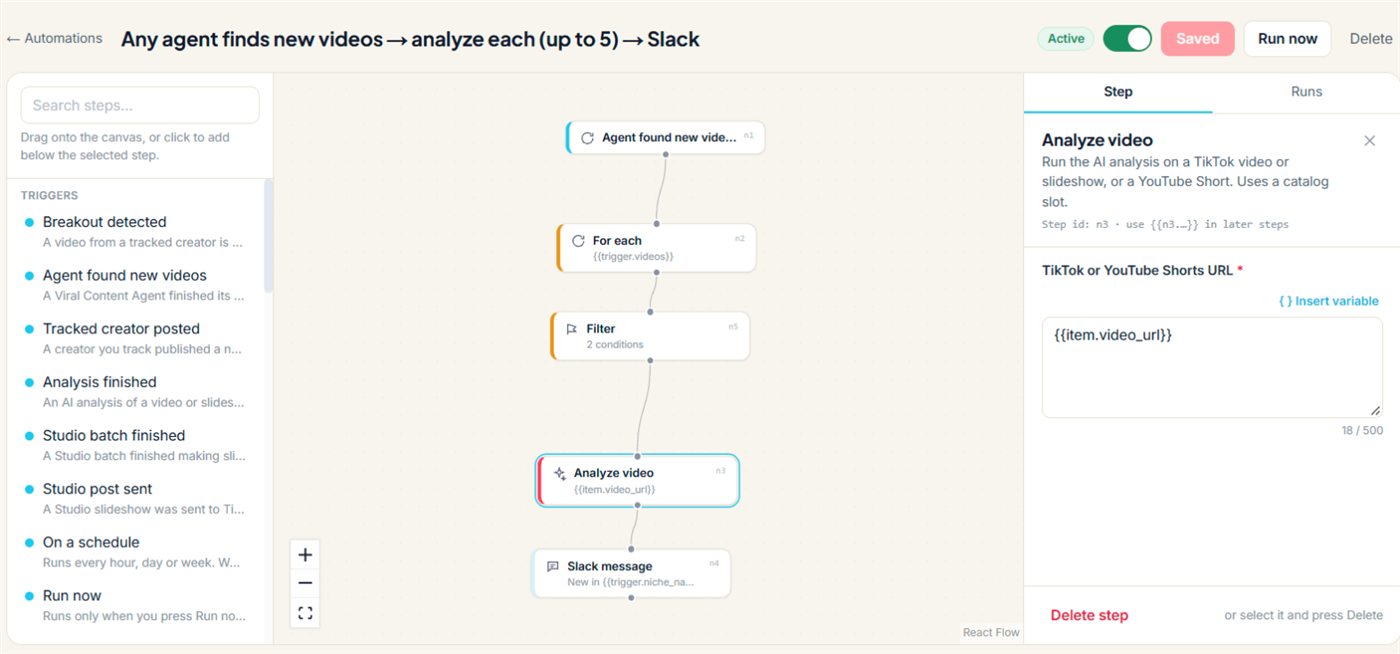
Any agent finds new videos → analyze each (up to 5) → Slack
- Agent found new videos
- For each · up to 5
- Analyze video
- Slack message · with the hook type
The best new videos in your niche, TikTok or Shorts, reach Slack analyzed, hook type included.
The building blocks
Every automation is one trigger plus up to 29 steps, and each step can use what the trigger and earlier steps produced.
Safety and limits
Automations are included on every paid plan. Runs reset on your billing day.
| Per workspace | Creator | Starter | Pro | Business |
|---|---|---|---|---|
| Automations turned on | 1 | 5 | 25 | 100 |
| Runs a month | 500 | 2,000 | 10,000 | 50,000 |
- Never posts to TikTok. Studio steps only send slideshows to your drafts, and you publish from the TikTok app.
- A run counts once it starts a real step. Runs stopped by a trigger setting or a Filter don’t count.
- Each automation runs at most 60 times an hour.
- An automation never re-triggers itself, and chains between automations stop after a few hops.
- Run now tests on your newest real event that matches the trigger’s settings, never another niche’s or creator’s (an example event only when the trigger has no settings to match).
- If a step hits a plan limit, the automation pauses and starts again by itself when there’s room: the allowance resets, you make room or you upgrade.
- After five failed runs in a row it pauses and emails you which step failed.
What you get
- Triggers for breakouts from creators you track, new Agent videos, new posts from tracked creators, finished analyses, Studio batches, a schedule or Run now
- Seven templates, from “breakout → analyze → script → Slack” to a weekly niche playbook posted to Slack
- Steps that analyze videos, write video or carousel scripts, run trend searches, save to your Library and track creators
- Data steps that read your breakouts, niche videos and stats, creator reports and Growth scorecard, and generate reports (a niche playbook with PDF and CSV links) to send on a schedule
- Slideshow Studio steps that make slideshows and send up to 5 at a time to your TikTok drafts for you to review
- Filter, branch, wait and “for each” steps to shape what runs
- Messages to Slack, Discord, a signed webhook or workspace members by email
- Run history for the last 30 days, with each step’s input, output and errors
- Included on every paid plan, with steps using the same allowances as doing them by hand
Which plan you need
Creator · 1 automation turned on · 500 runs a month
Automations are included on every paid plan. Each workspace can have Creator 1 automation turned on with 500 runs a month, Starter 5 automations with 2,000 runs, Pro 25 automations with 10,000 runs and Business 100 automations with 50,000 runs. Runs reset on your billing day.
- 1 automation turned on · 500 runs a month
- 100 videos analyzed, with hook, scenes and transcript
- 1 Viral Content Agent
- 20 AI scripts a month
- 10 viral-trend searches a month
- 1 seat
- Unlimited creators tracked
Questions
What can start an automation?
A breakout from a creator you track (5x, 10x or 20x+ their usual views), a Viral Content Agent finding new videos, a tracked creator posting, an analysis finishing, a Slideshow Studio batch finishing, a Studio slideshow being sent to TikTok, a schedule (hourly, daily or weekly, in your time zone), or you pressing Run now.
Which templates can I start from?
Seven, each ready to edit: Breakout from a tracked creator → analyze → script → Slack; Tracked creator posted → analyze → Library → Discord; Every Monday 9:00 → growth scorecard → email me; Every Monday 9:00 → niche playbook → Slack; Breakout (10x or more) → carousel script → Studio → TikTok drafts; Daily 8:00 → 3 Studio slideshows → TikTok drafts; Any agent finds new videos → analyze each (up to 5) → Slack. Or start from a blank canvas.
Can I filter by virality?
Yes. Virality is the multiplier: a video’s views divided by the creator’s typical views. Set a Breakout detected trigger to 5x, 10x or 20x, or add a Filter step such as “Multiplier is at least 5”, and pair it with “Views is at least 100,000” so only videos a real audience saw get through.
Will it post on my TikTok account?
No. Automations never publish anything. Studio steps can send slideshows to the TikTok drafts of an account you connected, and you review and publish them yourself in the TikTok app.
Can I send results to my own tools?
Yes, with the Webhook step: a signed JSON POST to a URL you add in Settings → Integrations, so any tool that accepts a webhook can take it from there, such as n8n, Make or your own server. It’s one-way: FYPNow sends the message and doesn’t read the reply.
Is automating TikTok against TikTok’s rules?
Automations don’t log in as you, follow, like or comment. They work from the video data FYPNow already collects, and the only thing they send to TikTok is slideshows for your drafts, through the official TikTok connection you approve in Settings. You decide what gets published, in the TikTok app.
Do I need Slack or another integration?
No. Every trigger works without one, and so do the research, Studio and email steps (Send to TikTok drafts needs your TikTok account connected in Settings). Only the Slack, Discord and webhook steps need a destination, which you add once in Settings → Integrations.
How many automations and runs do I get?
Automations are included on every paid plan. Each workspace can have Creator 1 automation turned on with 500 runs a month, Starter 5 automations with 2,000 runs, Pro 25 automations with 10,000 runs and Business 100 automations with 50,000 runs. Runs reset on your billing day. A run counts once it starts a real step; runs stopped by a filter don’t count. Steps that analyze, write or make something use the same plan allowances as doing it by hand.
What if a step fails or I hit a plan limit?
If a step hits a plan limit, the automation pauses and starts again by itself when there’s room again: the monthly allowance resets, you make room (for example by dropping a video from your catalog) or you upgrade. After five failed runs in a row it pauses and tells you which step failed, so nothing keeps failing quietly.
Can one automation set off another forever?
No. An automation never re-triggers itself, chains between automations are capped at a few steps deep, and each automation has an hourly safety limit.
Can I edit automations on my phone?
On a phone you can turn automations on or off and check their runs. Building and editing them needs a tablet or computer, where the canvas has room.